Desk Time and Office Punch both monitor desktop computer activity across North America, but they serve different purposes. Desk Time produces productivity scores. Office Punch produces attendance records. Choosing the wrong one means either over-engineering your monitoring setup or under-delivering on the audit readiness your HR team actually needs. This comparison covers exactly what each tool tracks, what it cannot do, and where the genuine differences sit — so you can match the right platform to your specific requirement.
Key takeaways
- Desk Time classifies every app and website as productive, unproductive, or neutral and calculates a daily productivity percentage per employee; Office Punch captures the same activity data as a factual log, with random screenshots, but applies no productivity score.
- Office Punch auto-clocks employees in the moment their Windows PC starts — no manual action required; Desk Time tracks from when the desktop client is open and running.
- Office Punch has no mobile app; Desk Time offers iOS and Android apps. Neither platform offers GPS tracking.
- Office Punch’s geo restriction feature blocks clock-in attempts made outside a defined location perimeter or IP range — it is a desktop attendance gate, not continuous GPS tracking.
- Office Punch’s free plan covers up to 5 users with core monitoring features; Desk Time’s free tier covers only 1 user.
The short version
Desk Time is a productivity measurement platform. It labels each application and website a user visits as productive, unproductive, or neutral and rolls those labels into a daily score. Managers see a percentage alongside the raw activity data.
Office Punch is an attendance and activity monitoring platform. It auto-records when a Windows PC starts, logs which apps are open and which sites are visited throughout the shift, and captures screenshots at random intervals to create a verifiable activity record. There is no productivity score — only the documented facts.
If you need a daily productivity rating for coaching conversations, Desk Time provides that out of the box. If you need a tamper-resistant attendance log with screenshot evidence for HR disputes or payroll audit purposes, Office Punch is the closer fit.
The detail
Feature comparison across both platforms:
| Feature | Desk Time | Office Punch |
|---|---|---|
| App usage tracking | ✓ with productivity labels | ✓ raw activity log |
| Website usage tracking | ✓ with productivity labels | ✓ raw activity log |
| Random screenshots | ✓ paid plans only | ✓ included |
| Auto clock-in at PC startup | ✗ | ✓ |
| Active vs idle detection | ✓ | ✓ |
| Geo restriction / IP restriction | ✗ | ✓ |
| Mobile app (iOS/Android) | ✓ | ✗ |
| GPS tracking | ✗ | ✗ |
| Project management | ✓ paid plans | ✗ |
| Billable hours tracking | ✓ paid plans | ✗ |
| Free plan | 1 user, limited features | Up to 5 users |
Point one: Productivity classification versus raw activity capture
Desk Time’s defining feature is a productivity classification layer built on top of activity data. Every application an employee opens and every website they visit gets assigned to one of three categories by the admin: productive, unproductive, or neutral. A law firm might classify legal research databases as productive and social media feeds as unproductive. A software company might rate their development environment as highly productive and video streaming as unproductive.
Desk Time uses those classifications to calculate how many minutes of each working session fell into productive categories. The result is a daily productivity percentage visible on the manager dashboard in near real-time. Weekly and monthly summaries let managers track trends. Managers can configure threshold alerts so they are notified when an employee’s score drops below a set level on a given day.
This scoring approach is fast to interpret. A manager scanning a team of twelve people can see at a glance which team members hit their productivity targets and which did not, without reviewing individual session data. The percentage is a summary, and for day-to-day management conversations it can be sufficient.
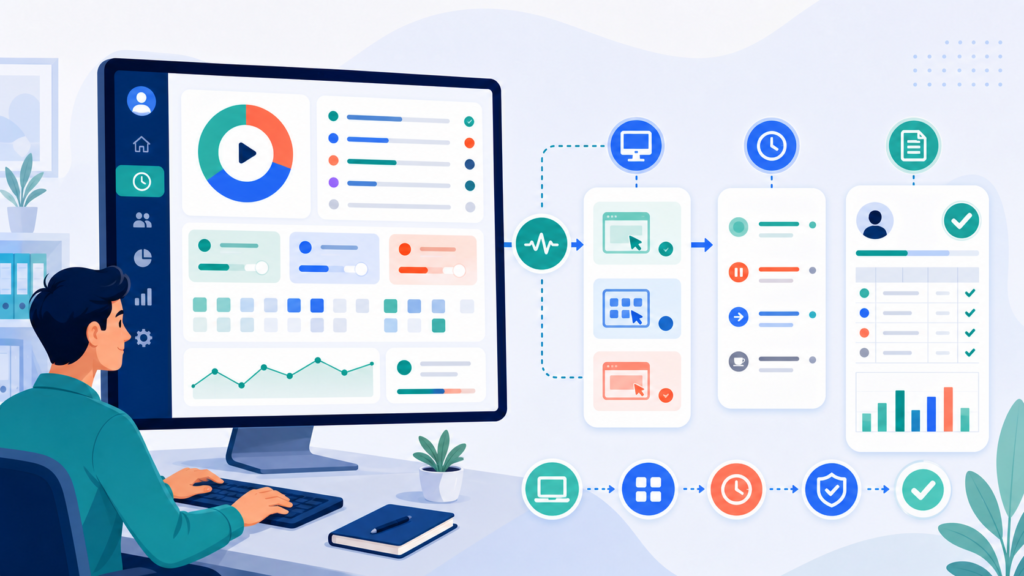
Office Punch does not produce a productivity score. It records exactly what happened during the session — which applications were running, which websites were open, how long each was active — and adds random screenshots at intervals throughout the shift. A manager reviewing an Office Punch session sees a factual timeline, not a number that someone else’s category decisions have shaped.
According to how to track employee attendance in real time, the screenshot-plus-log record is particularly valuable when time records are disputed, because the evidence is unambiguous — it shows what was on screen at a specific moment, not a score derived from category settings.
The practical distinction: Desk Time gives you an answer quickly; Office Punch gives you the evidence. Which matters more depends on what you do with the data after you collect it.
Point two: Clock-in method and attendance certainty
Desk Time begins tracking when the employee opens and runs the desktop client. Employees need to have the application active and running to accumulate tracked time. Desk Time’s idle detection pauses tracking when there is no keyboard or mouse input for a configurable period — most implementations use between 1 and 10 minutes — and then prompts the employee to categorise the idle time as a break, a meeting, or productive offline work.
This self-categorisation feature is by design. Desk Time positions it as a transparency mechanism: employees have input into how their time is labelled, which can reduce the sense that monitoring is purely surveillance. For teams with high levels of trust and self-directed schedules, this works well.
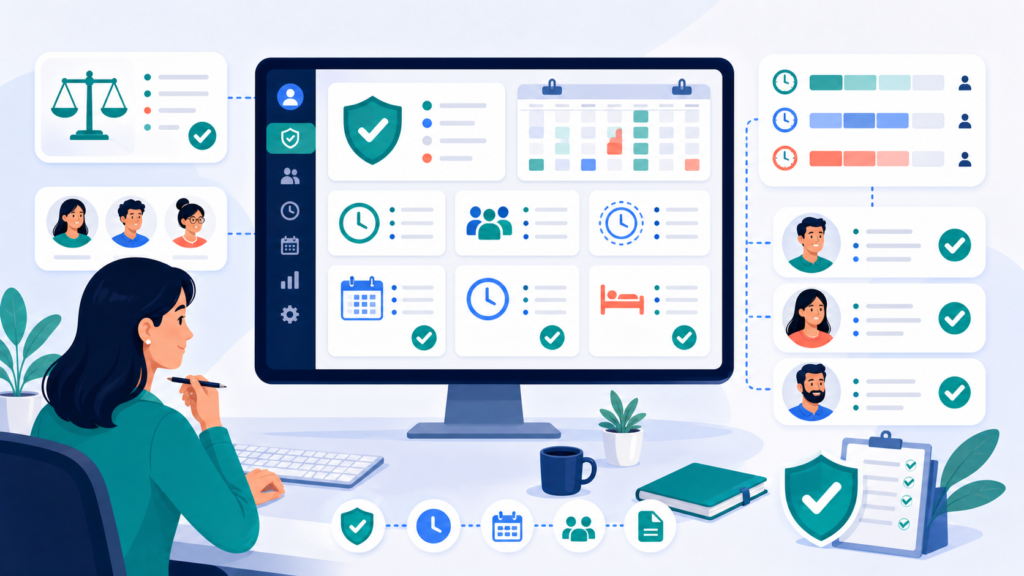
Office Punch handles clock-in automatically. The attendance record starts the moment the Windows PC boots. There is no separate application to open, no manual punch-in, no action required from the employee. When the session ends — machine shuts down or the user logs out — the clock-out is recorded. The entire attendance record is machine-generated.
For HR managers who need attendance records that do not depend on employee action, the auto-start model removes a common failure point. In manual or app-launch-based systems, employees who forget to open their time tracker create gaps in the record. Those gaps become disputes. The auto-start approach eliminates the gap before it can form.
The productivity monitoring page explains how the attendance record integrates with Office Punch’s activity log and reporting dashboard, including how managers export session-level reports for specific employees and date ranges without requiring any input from the people being monitored.
For distributed teams where managers are not in the same location as employees, the automatic and non-discretionary nature of the attendance record is a significant operational advantage. There is no coaching needed, no reminder to clock in, and no end-of-week reconciliation to catch forgotten entries.
The exception: Shared machines and shared Windows accounts
The auto clock-in model works cleanly when each employee has their own Windows user account on their own machine. In shared-machine environments — a reception desk where three staff members rotate through the same PC, for example — attribution breaks down if everyone logs into the same Windows account.
Both Office Punch and Desk Time track at the operating system session level. One shared Windows account produces one combined record that cannot be split by person after the fact. A shift where three different employees used the same account for two hours each appears in the log as a single six-hour session assigned to whoever owns the account.
The solution is individual Windows logins. Where that is operationally difficult, manual sign-in methods become necessary, and neither tool resolves the attribution problem automatically.
Why it happens
Both platforms bind their tracking to the OS user session because the session is the most reliable identifier available on a standard Windows machine without biometric hardware or a separate PIN-based check-in layer. The software knows which account is active; it cannot determine which human is sitting at the keyboard.
How to spot it early
If your monitoring dashboard shows a single Windows account logged in for more than 14 hours continuously on a machine you know multiple employees use throughout the day, shared-account attribution is the most likely explanation.
Point three: Screenshots and evidence quality
Screenshots are included in both platforms, but the access, interval, and positioning differ in ways that matter for HR use cases.
Desk Time includes screenshots on its Pro and Premium paid tiers. The capture interval is set by the admin — typically every few minutes — and both managers and employees can view the captured images. Desk Time positions the employee-visible screenshots as a transparency feature: the employee knows when captures occur and can see what was recorded. Screenshots appear alongside the productivity timeline, so a manager can see not just the productivity score for a given window but also what was visually on screen.
Office Punch captures screenshots at randomised intervals throughout the session rather than on a fixed schedule. Randomisation reduces the predictability that allows some employees to adjust their behaviour during predictable capture windows. Screenshots are accessible to managers directly from the session log. The combination of app usage data and randomised screenshots gives HR teams documentation that supports formal processes — disciplinary conversations, performance reviews, payroll dispute resolution — in a way that a fixed-interval or admin-visible-only screenshot system does not.
For organisations where proof of activity quality matters — creative agencies reviewing output quality, compliance teams verifying that staff use only approved systems, finance teams confirming that sensitive data access was appropriate — the screenshot record provides evidence that a productivity score alone cannot supply.
In employment contexts where an employee later disputes that they were working during a logged period, a screenshot showing the actual screen at a verified timestamp is substantially more difficult to challenge than a productivity percentage derived from category settings. This distinction matters most in Ontario, British Columbia, Alberta, and Quebec, where employers are more likely to face formal privacy and employment standards scrutiny of their monitoring records.
Note that Desk Time allows employees to see their own screenshots, which creates a transparency dynamic that some employees find reassuring and others find intrusive. Office Punch screenshots are visible to managers, not employees, by default. The appropriate choice depends on your workplace culture and the purpose of your monitoring programme.
Integrations and reporting
Desk Time integrations
Desk Time connects with project management tools including Trello, Asana, Jira, and Basecamp on its paid plans. These integrations allow managers to tie tracked time to specific projects, giving an overview of how much time is being spent per client or work stream. Desk Time also integrates with payroll software in some configurations, allowing time records to feed into payroll calculation without manual re-entry.
Desk Time produces downloadable reports — daily, weekly, and monthly — that show productivity percentages, app breakdowns, and time-by-project summaries. The reports export as CSV or PDF for distribution to management or HR teams.
Office Punch reporting
Office Punch does not integrate with project management software. It is not designed for project-level time allocation. The reporting output focuses on attendance and activity: session start and end times, app usage logs, website logs, screenshot galleries, and active-versus-idle time summaries.
Reports in Office Punch can be filtered by employee, date range, and session type. The screenshot log is searchable by timestamp. For teams that forward monitoring reports to HR or legal counsel, the Office Punch export produces a documented record that stands up to external review. The time tracking report page outlines the report formats available and how managers access them.
Who should use Desk Time
Three scenarios where Desk Time wins
Desk Time is the better fit in three specific situations.
First, teams that need to bill clients based on time allocation. Desk Time’s project tracking on paid plans allows managers to tag sessions to client accounts and produce reports showing time spent per project. This is not billable hours invoicing in the full sense, but it gives agencies a starting point for time-based billing reviews. Office Punch has no equivalent.
Second, organisations that need cross-platform monitoring — Windows, Mac, and Linux machines, or teams using company mobile devices. Desk Time’s desktop clients cover Windows and Mac, and its mobile apps cover iOS and Android. Office Punch covers Windows desktops only.
Third, teams whose primary management tool is a productivity score. If managers are reviewing daily scores, setting targets, and coaching employees toward higher percentages, Desk Time’s classification and scoring engine is built for that workflow. Office Punch does not provide this.
Desk Time also suits organisations where employees work across Mac and Windows environments or where the workforce uses company-issued mobile devices. The cross-platform coverage is a genuine advantage when a uniform monitoring policy needs to apply across different hardware.
Who should use Office Punch
Four scenarios where Office Punch wins
Office Punch is the better fit in a different set of situations.
Teams that need attendance records that cannot be falsified by a missing clock-in benefit from Office Punch’s auto-start model. If the PC is on, the session is logged. There is no human step to forget or bypass.
Businesses that need screenshot evidence for HR disputes, payroll audits, or employment tribunal preparation find Office Punch’s random-interval screenshot model more defensible than a fixed-interval or employee-visible capture system. Randomisation removes the predictability that lets employees manage their on-screen behaviour around known capture windows.
Small teams — up to five people — can use Office Punch’s full monitoring capability on the free plan. There is no free equivalent in Desk Time for teams larger than one person.
Organisations subject to Canadian privacy legislation that need an audit trail showing exactly what an employee’s machine was doing at a specific time — not a score derived from category decisions — find Office Punch’s raw log format more directly usable in formal proceedings.
The how to track your employees post covers the practical considerations for setting up Windows desktop monitoring across a distributed team, including the documentation that HR teams need before deployment.
For teams that are undecided and have up to five employees, Office Punch’s free plan is the lowest-friction way to evaluate what the raw log and screenshot model looks like in practice. There is no commitment required, and the free plan includes all core monitoring features rather than a limited trial.
How this plays out in North America
The Canadian legal context
Across North America, desktop computer monitoring is a standard part of remote and hybrid office operations. The question for most employers is not whether to monitor but which tool fits the specific legal and operational context.
Canadian employers face specific disclosure requirements before any monitoring tool goes live. In Ontario, employers with 25 or more employees must provide a written electronic monitoring policy to all staff and to new hires within 30 days of employment, under the Employment Standards Act, 2000 as amended by the Working for Workers Act, 2022. The policy must state whether electronic monitoring occurs, what is monitored, and what the employer may use the monitoring data for.
British Columbia and Alberta both operate under their own Personal Information Protection Acts. Quebec employers must comply with Law 25 — Act Respecting the Protection of Personal Information in the Private Sector — which requires, among other obligations, informing employees of the existence, purpose, and means of any monitoring before it begins. Federal employers in Canada fall under the Personal Information Protection and Electronic Documents Act (PIPEDA).
Both Desk Time and Office Punch are compliance-capable tools in that they produce the logs, records, and audit trails a compliant monitoring programme requires. They do not make the compliance decisions for you. The written policy, the disclosure, and the proportionality assessment are the employer’s responsibility.
Pricing is a common deciding factor for North American SMBs comparing the two tools. Desk Time’s Pro plan starts at approximately USD $7 per user per month. Office Punch uses flat per-organisation pricing with a free plan for up to five users — meaning the cost does not increase as team size grows beyond the paid tier threshold. For a team of 15 people, Office Punch’s flat pricing typically represents a meaningfully lower total cost than per-user pricing at the same headcount.
The how to track employee time resource covers the implementation steps and documentation requirements that most Canadian HR teams work through before a desktop monitoring tool goes live.
The US context
US employers generally have fewer mandatory disclosure requirements for company-owned equipment monitoring under federal law, though several states — including Connecticut, New York, and Delaware — have enacted their own notice requirements. Employers with teams on both sides of the border should design their monitoring programme to meet the more stringent Canadian standard.
What people get wrong
Treating them as interchangeable
The most consistent error in comparing Desk Time and Office Punch is treating them as interchangeable desktop monitoring tools. They share the same underlying data — app usage, website visits, active time — but they produce different outputs and serve different management goals.
Desk Time produces a score. Office Punch produces a log with screenshots. A manager who wants a single number they can put in a weekly report will find Desk Time more immediately useful. A manager who needs to reconstruct what happened during a specific four-hour window — for a dispute, a compliance audit, or a performance review — will find Office Punch’s log and screenshot combination more directly useful.
Geo restriction is not GPS
The second common error is treating Office Punch’s geo restriction feature as equivalent to GPS tracking. It is not. Geo restriction creates a location-based gate at the moment of desktop clock-in. If an employee’s Windows PC is outside the defined perimeter, the attendance system flags or blocks the registration. That check happens at the point of login — it is a one-time gate, not continuous location tracking. Office Punch does not track where an employee is throughout their shift, does not record location updates after clock-in, and has no mobile location capability whatsoever. If your requirement is proving where an employee was at 2 PM on a specific Tuesday — not just whether they were at the right location when they started — geo restriction alone does not satisfy that requirement.
Neither tool is a project management platform
The third error is expecting either tool to handle project management or billable hours. Neither is a project management platform. Office Punch has no project or billing module of any kind. Desk Time has lightweight project tracking on paid tiers, but it is a supplementary feature designed for time allocation visibility, not a full project management or invoicing system.
How Office Punch approaches it
The design principle
Office Punch is a Windows desktop attendance and monitoring platform built for businesses that need a verifiable, automatically generated attendance record alongside a factual activity log.
The design principle is that attendance records should be machine-generated, not employee-dependent. Auto clock-in at PC startup means the attendance record is accurate from day one without any training, reminders, or process changes on the employee side. App and website tracking gives managers visibility into session activity. Random screenshots create a verifiable record that holds up in formal HR processes.
Geo restriction and IP restriction add a location-based attendance gate for teams that need to verify employees are connecting from an authorised location or network, without the operational overhead of GPS hardware or mobile tracking.
What Office Punch does not do
Office Punch does not offer project management, billable hours tracking, or an iOS/Android mobile app. It is a deliberately focused tool: Windows desktop attendance and monitoring, with the screenshot and activity log evidence that HR teams need when time records are questioned.
There is no timesheet approval workflow, no invoice generation, and no payroll integration. Office Punch produces the attendance and activity data; the employer’s payroll system handles the calculations. For businesses that need a monitoring tool that also manages the payroll run, Office Punch is one part of a two-tool setup rather than a complete solution on its own.
That narrowness is also what makes Office Punch’s flat pricing model viable. The platform does not expand into territory that adds per-user cost drivers. One organisation price, one monitoring scope, one clear purpose.
The Desk time vs office punch comparison on the Office Punch site provides a feature-level breakdown in table form. For HR teams whose primary need is a productivity monitoring record that can serve as evidence in dispute resolution or payroll audit, Office Punch covers the requirement. For teams whose primary need is a daily productivity score and who also need mobile app coverage, Desk Time is the more complete option.
Understanding the scope of each tool before deployment prevents the mismatch that drives most critical reviews of both products. Both tools are good at what they are designed to do. The question is whether what they do matches what you need.
The honest summary
Office Punch is an attendance and monitoring tool. Desk Time is a productivity measurement tool. They overlap in the middle — both capture app and website usage — but they diverge in purpose, output format, and use case. Knowing which output your HR team actually needs is the most important decision in this comparison. Everything else follows from that.
Frequently asked questions
Does Desk Time track websites?
Yes. Desk Time logs every website visited in the browser and classifies it as productive, unproductive, or neutral based on admin-set categories. Time on each site is recorded and included in the daily productivity percentage. Office Punch also logs website activity throughout the session and captures screenshots, but applies no classification — the record shows exactly which sites were open and for how long, without an admin’s category decisions shaping the output.
Can Office Punch track employees on mobile devices?
No. Office Punch is a Windows desktop application with no iOS or Android app. Monitoring covers Windows PC sessions only. Employees working from phones, tablets, Mac computers, or Linux machines are not tracked by Office Punch. If your workforce works primarily from mobile devices or non-Windows hardware, Office Punch does not cover that use case and Desk Time’s cross-platform mobile app would be worth evaluating instead.
Does Desk Time offer a free plan?
Desk Time’s free plan covers a single user and excludes screenshots and project tracking. Office Punch’s free plan covers up to five users and includes core attendance tracking, app and website monitoring, and screenshot functionality within the five-user threshold. For small teams of up to five people, Office Punch’s free tier provides more comprehensive monitoring features than Desk Time’s free offering.
What is Office Punch’s geo restriction feature and how does it differ from GPS?
Office Punch’s geo restriction creates a location-based attendance gate at the desktop level. When an employee’s Windows machine falls outside a defined geographic perimeter — or connects from a network address outside an approved IP range (IP restriction) — the clock-in attempt is blocked or flagged. The check happens at the moment of login, not continuously throughout the shift. Office Punch does not offer GPS tracking, does not record location during the workday, and has no mobile location capability. The feature verifies where the machine logged in from; it does not track where the employee goes afterwards.
About Office Punch
Office Punch is a Canadian-built Windows desktop monitoring platform serving businesses across North America. The platform auto-records attendance from the moment a Windows PC starts, captures app and website activity throughout the shift, and takes random screenshots that create an auditable session record. Office Punch offers a free plan for teams of up to five users, with flat per-organisation pricing above that threshold — making costs predictable regardless of headcount changes. The platform is used by HR managers, operations leads, and small business owners who need verifiable attendance records paired with factual activity logs, without the complexity of a full workforce management suite.
Service area
Office Punch serves businesses across North America, including major Canadian employment centres — Toronto, Vancouver, Calgary, Edmonton, Ottawa, Montreal, and Winnipeg — as well as US-based remote and hybrid teams. The platform is cloud-hosted and supports Canadian employers operating under federal PIPEDA, Quebec’s Law 25, BC’s Personal Information Protection Act, Alberta’s PIPA, and Ontario’s electronic monitoring policy requirements. Teams with employees on both sides of the Canada–US border can configure Office Punch to produce the monitoring records and audit logs that employment counsel on both sides expect to see.
Next step
If your team needs verifiable Windows desktop attendance records tied to app activity and screenshot evidence, visit the productivity monitoring page for a full feature walkthrough and to activate your free plan for up to five users.