o track employee hours on a Mac, use a native macOS time tracking app that starts automatically when an employee logs in, records active and idle time, and sends data to a web dashboard managers can check from any browser. Office Punch has a native macOS desktop app — available for both Apple Silicon and Intel Macs running macOS 11 Big Sur or later — alongside its Windows app, so mixed teams work from a single account. This post covers what the app does, how it handles Mac-specific settings, and how to get started with a free plan.
This guide is for owners and IT managers of Mac-based teams — agencies, design studios, development shops — who need a verifiable attendance record, not just a personal timer.
Key Takeaways
- Office Punch has a native macOS app for Apple Silicon and Intel Macs running macOS 11 Big Sur or later.
- The free plan covers up to five users and includes auto clock-in, idle detection, and 30 days of time history.
- The premium plan costs $4 per seat per month (billed annually) and adds screenshots, app usage tracking, geo-fencing, and one year of data retention.
- Auto clock-in starts when the employee logs in — no button to press, no manual time entries to chase.
- Mac and Windows employees share the same account and dashboard.
What a Time Tracking App for Mac Should Do
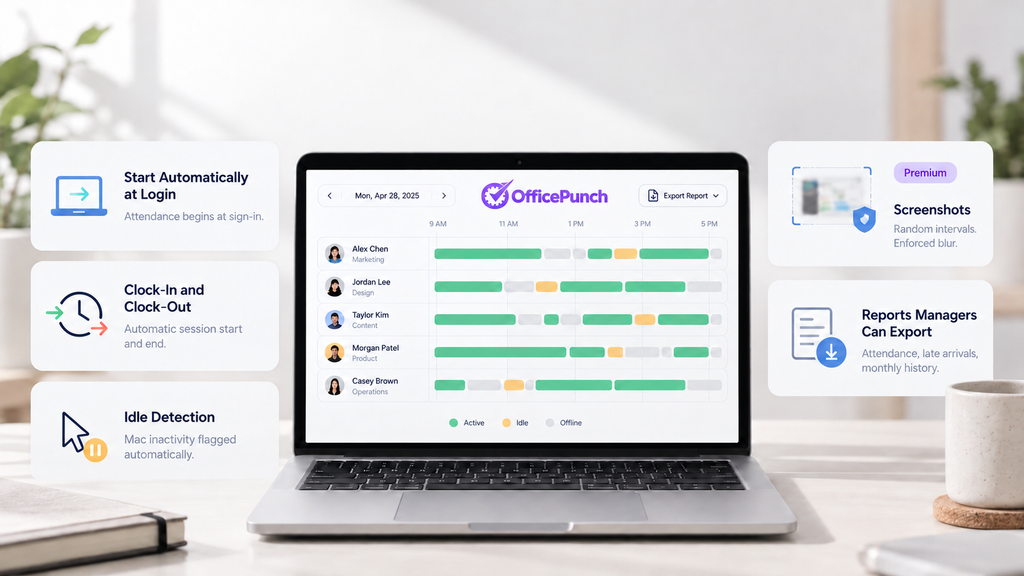
A time tracking app for Mac teams needs more than a start/stop timer. For employer use, the right tracking app for Mac should cover:
Start Automatically at Login
Attendance logging begins when the employee opens their Mac — no reminder needed, no forgotten entries.
Clock-In and Clock-Out
Session start and end are recorded without employee action. Managers see a daily timeline for every team member.
Idle Detection
The app distinguishes between time at the desk and time the Mac is sitting untouched. Idle periods are flagged automatically so the time data stays accurate.
Screenshots (Premium)
Random screenshots at configurable intervals give managers a visual record of the working session. Admins can enforce blurred captures for privacy.
Reports Managers Can Export
Daily attendance summaries, late arrival logs, and monthly time history — exportable for payroll or HR review.
Employee Time Tracking Software for Mac vs Personal Timers
Most time tracking apps for Mac fall into one of two categories. Understanding the difference prevents choosing the wrong tool.
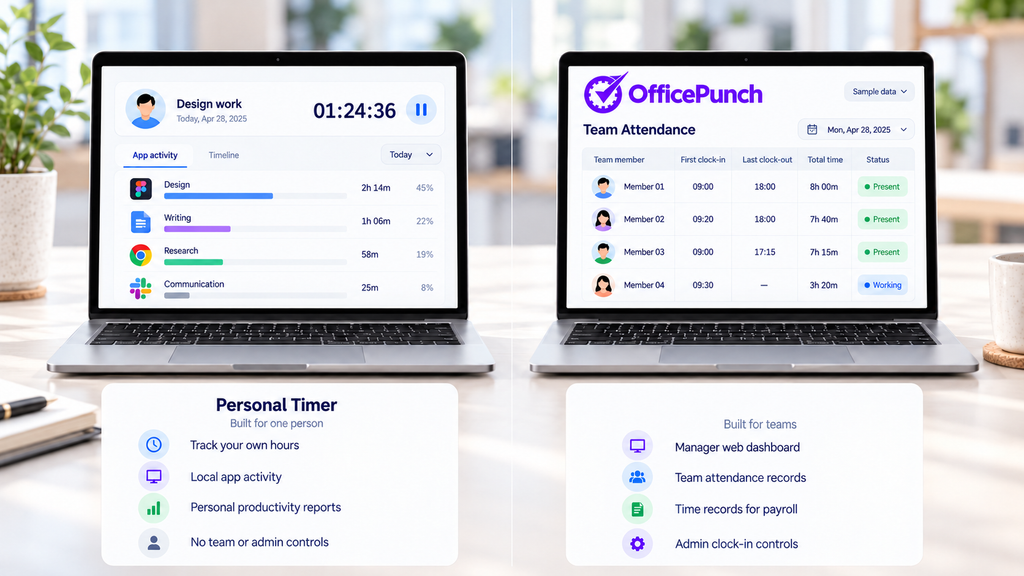
Personal Timers: Built for One Person
Personal productivity timers track how one person spends their time. They run locally, classify apps automatically, and produce personal productivity reports. These are individual tools — they have no manager dashboard, no team attendance record, and no admin controls.
Employer Tools: Built for Teams
A business-grade time tracking app for Mac adds a manager layer: a web dashboard showing every employee’s attendance, a centralized record for payroll, and controls that set boundaries on where and when employees can clock in. Office Punch is built for this use case. It records the team, not just one person.
If you are tracking your own hours for personal productivity, a personal timer may be the right fit. If you need time records for a team — for payroll, employment standards compliance, or capacity planning — you need an employer tool.
Automatic Time Tracking on Mac
Auto Clock-In at Login
Office Punch starts recording when the employee logs into their Mac. There is no clock-in button. The session log is machine-generated from the first moment of activity, which removes the manual entry errors that affect most manual time trackers. Automatic tracking improves accuracy by reducing the missed entries and rounding errors that manual timers introduce.
Idle Auto Clock-Out
When the Mac goes inactive — no keyboard, no mouse movement — Office Punch detects idle time and can automatically trigger a clock-out or mark the period as idle. Idle time appears separately in the daily timeline so managers can see actual work time rather than computer-on time.
For more on how idle detection works as a productivity signal, see idle time detection: useful signal or noise.
Mac Time Tracking Software and macOS Privacy Settings
macOS asks users to approve certain app permissions before any background monitoring can begin. Office Punch will prompt for the permissions it needs during setup. Your IT admin can pre-approve these through Mobile Device Management (MDM) before rolling out to the team.
Permissions the App Asks For
Contact Office Punch support to confirm the exact macOS permission prompts for your version of the app before deployment. The specific permissions depend on which features are enabled — screenshots and activity tracking require different access levels than basic clock-in logging.
What Employees See and Control
Office Punch records session start and end times, active versus idle time, and — on premium plans — app and website usage and screenshots. Screenshots are captured at unpredictable intervals during the session; employees are not notified in real time when a screenshot is taken. Admins can configure blurred captures if your organization’s policy requires it.
Employees are not able to delete their own attendance records. Managers can adjust time entries through the web dashboard.
For the legal framework around screenshot monitoring in Canada, see time tracking screenshots: legal monitoring rules.
How to Set Up Office Punch on a Mac
- Go to the Office Punch app download page and select the Apple Silicon build (M1/M2/M3 or later) or the Intel build, depending on your Mac.
- Your Mac must be running macOS 11 Big Sur or later. The installer is under 80 MB.
- Install the app and log in with your Office Punch account credentials.
- macOS will prompt for any permissions the app requires. Approve them to enable full tracking.
- The free 30-day trial starts automatically on first sign-in.
- Once the app is running, the manager sees the employee’s attendance in the web dashboard immediately.
Repeat for each employee’s Mac. No per-device licence is required — you pay per active user, not per installation.
Time Clock App for Mac: Attendance as Well as Hours
Daily Attendance Records
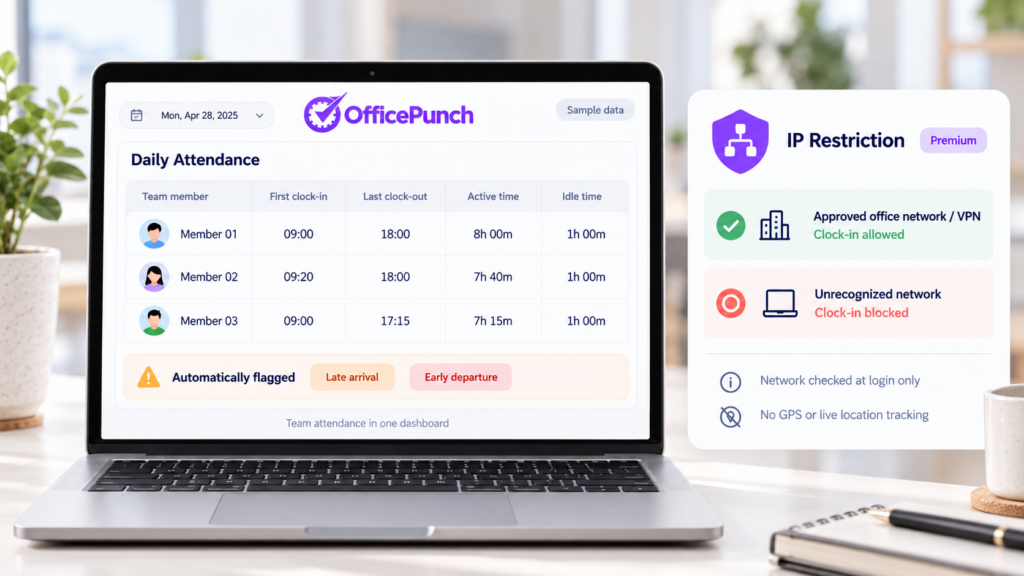
Office Punch produces a daily attendance record for each employee: first clock-in, last clock-out, total active time, and total idle time. Late arrivals and early departures are flagged automatically. Managers can review attendance across the team in the web dashboard without waiting for employees to submit anything.
IP Restriction
On the premium plan, Office Punch can limit clock-ins to approved IP addresses — your office network or VPN. An employee whose Mac is connecting from an unrecognized network cannot start a tracked session. This is a desktop attendance gate, not GPS tracking. Location is checked at the point of login only; no location data is collected during the session.
This makes Office Punch a time clock app for Mac rather than just a timer — attendance is verified, not assumed.
Tracking Mixed Mac and Windows Teams
If your team uses a mix of Macs and Windows PCs, Office Punch covers both. The macOS app and the Windows app feed into the same account. Managers see attendance and activity for all employees — regardless of operating system — in a single web dashboard.
There is no separate licence or plan for Mac versus Windows users. Both apps are available on the app download page.
Frequently Asked Questions
Is there a free time tracking app for Mac?
Yes. Office Punch’s free plan covers up to five users at no cost and includes auto clock-in at login, idle-time auto clock-out, and 30 days of time history and monthly reports. Screenshots, app usage tracking, and geo-fencing are available on the premium plan ($4 per seat per month, billed annually). The free plan covers the core attendance record most small teams need to get started.
Does time tracking work on macOS and OS X?
Office Punch’s macOS app supports macOS 11 Big Sur and later, on both Apple Silicon (M1, M2, M3, and newer) and Intel Macs. Earlier versions of macOS and OS X are not supported by the current release. Check the app download page for the latest confirmed system requirements before deploying to your team.
What is the best time tracking software for Mac?
The best time tracking tool for a Mac-based team depends on what you need to track. Personal productivity timers are designed for one person and classify time automatically. For team attendance and employer-grade records, the criteria shift: native macOS app, automatic tracking that starts at login, a manager dashboard, exportable reports, and pricing that works for a team. See what is the best time tracking software for a full breakdown by use case.
Is there time logging software for Mac?
Yes — Office Punch logs every session automatically, with no manual time entries required from employees. The session log captures clock-in time, clock-out time, active periods, and idle periods throughout the day. Managers can export time logs for any date range from the web dashboard. This automatic time logging is available on both the free and premium plans.
Track Mac Hours With Office Punch
Office Punch runs on macOS 11 and later — Apple Silicon and Intel — and gives Mac teams the same automatic attendance logging, idle detection, and manager reporting as the Windows app. Start with the free plan for up to five users, or explore the full feature set on the employee time tracking software page. Download the macOS app at officepunch.com/app-download/ and the 30-day trial starts automatically on first sign-in.