Desktop time tracking software records when employees start work, how long they stay focused, and when they step away — automatically, from the PC itself. This post covers how it works on Windows and Mac, what separates genuinely useful tools from overly complex ones, how to choose between automatic and manual tracking options, and what good time data should look like for managers and employees alike. It is written for HR managers, operations leads, and business owners running office or remote desktop teams who need accurate attendance records, not another administrative layer to manage.
Key Takeaways
- Manual time tracking underreports time by 15 to 25 percent — not because employees are dishonest, but because human memory is a poor estimator of daily focus.
- The feature that actually changes how managers work day to day is frictionless, project-level time tracking with real-time utilization visibility — not surveillance.
- Desktop time tracking software should feel invisible to the employee and informative to the manager.
- Teams using automatic tracking see productivity improvements of 15 to 30 percent compared to manual methods.
- Resistance to time tracking is rarely about the tool itself — it is almost always about fear of micromanagement and a perceived loss of autonomy.
- For Windows and Mac desktop teams, automatic session logging at PC login is the most accurate and least disruptive form of employee time tracking available.

Why Manual Time Tracking Fails Desktop Teams
The most common starting point for desktop teams is a spreadsheet or a paper timesheet. Everyone fills it in at the end of the day, or the end of the week, or just before payroll closes. It feels manageable — until you look at what the data actually says.
Studies show manual tracking underreports time by 15 to 25 percent. That gap is not intentional. It is a memory problem.
When someone sits down at 9:04 and looks up at 11:47, they write “two hours of work.” They are not accounting for the ten minutes troubleshooting a VPN issue, the twenty minutes on an email thread that grew unexpectedly, or the context-switching between three different tasks that made each one take longer than it should have. The numbers look clean. The underlying data is not.
The single biggest surprise when organizations switch from manual time tracking to automated desktop tracking is the scale of that gap. Not just the raw percentage — the realization that human memory is a fundamentally unreliable instrument for measuring daily focus. People genuinely believe they know where their time goes. The data consistently shows otherwise.
This is not a character flaw in employees. It is a design flaw in any system that asks people to reconstruct their day from memory rather than capture it as it happens. Manual timesheets are retrospective estimates. Automated desktop tracking is a contemporaneous record. That difference matters for payroll accuracy, employment standards compliance, and the business decisions that depend on reliable time data.
For desktop teams, the fix is architectural. The tracking should start from the machine itself, not from a human action.
What Desktop Time Tracking Software Actually Does
Time tracking software replaces manual timesheets with automated logs and analytical dashboards. At the session level, it records when an employee’s computer becomes active, when it goes idle, and when the session ends. At the reporting level, it turns those raw records into attendance summaries, utilization data, and payroll-ready exports.
The best desktop employee time tracking tools for Windows and Mac operate across several layers.
Automatic Time Tracking at PC Login
Automatic time tracking starts when employees turn on their devices. There is no clock-in button and no app to open. The session record is machine-generated from the first moment of activity, which removes the end-of-day reconstruction that makes manual entry unreliable.
Office Punch works this way for Windows and Mac teams. The desktop app starts recording when an employee logs in and stops when the session ends or when the PC goes idle beyond a configured threshold. Automatic tracking eliminates the need for manual timer clicks — which is the most direct fix for missed entries and underreported hours that affect payroll calculations.
Idle Time Detection
A basic clock-in and clock-out record counts computer-on time as working time. That overstates hours whenever an employee steps away from their desk without closing their session.
Desktop tracking software addresses this with idle time detection. When there is no keyboard or mouse input beyond a set threshold, the system flags the period as idle and records it separately from active working time. Managers see actual desk time rather than computer-on time — a more accurate input for payroll and a cleaner signal for capacity planning.
Activity and Application Monitoring
Several desktop time tracking tools go deeper than session logging. DeskTime tracks apps and websites, categorizing productivity automatically based on whether applications are classified as productive, neutral, or unproductive. Time Doctor captures screenshots and monitors websites for employee accountability. Hubstaff offers GPS tracking and geofencing for remote workers, though GPS-based features apply to mobile and field use cases rather than desktop sessions.
For office and remote desktop teams, the relevant monitoring layer is application and website usage during the session. On premium plans, tools like Office Punch record which applications and websites were active during each session, giving managers a factual view of how desktop time was spent alongside the session-level attendance data.
Payroll and Reporting
Accurate payroll can be achieved through time tracking only when the data can be exported in a format payroll systems can use. Most desktop tracking tools export to Excel or CSV. Some integrate directly with payroll platforms. Office Punch exports session data to Excel; the export step is manual, and the platform does not include direct payroll platform integrations.
The Feature That Actually Changes How Managers Work
Here is something that becomes clear after working across office, remote, and hybrid teams: the features that look most impressive in a demo are often the ones that get used least in practice.
Screenshot monitoring and real-time activity feeds generate attention during vendor presentations. In day-to-day management, they create friction without adding proportionate signal. Managers who rely on surveillance data tend to find themselves managing appearances rather than outcomes.
The feature that genuinely changes how managers run teams is frictionless, project-level time tracking paired with real-time utilization visibility. When a manager can see, without asking anyone, that one team member has spent 22 hours on a project budgeted for 15 while another has capacity, that is immediately actionable. It does not require screenshots — it requires accurate time capture and a dashboard that surfaces the signal.
Tracking tools that require employees to create projects, assign tasks, and remember to start and stop timers erode accuracy over time. Automatic tracking with one-click project assignment — or session-level logging for teams that do not track at the project level — produces cleaner data with less burden on the employee.
What Good Desktop Time Tracking Feels Like
For desktop-based teams on Windows and Mac, good time tracking means capturing accurate data with zero manual administrative burden. It means moving completely away from the anxiety of the traditional, retrospective manual timesheet — the end-of-week scramble where employees try to reconstruct five days of work from calendar entries and email threads.
For the Employee
A well-implemented desktop time tracking system should be almost invisible to the person doing the work. The employee turns on their computer and starts working. There is nothing to click, nothing to open, no end-of-day reminder to log hours. The tracking happens in the background, accurately, without requiring any change to how the employee works.
When a project assignment is needed, it should take one interaction, not a multi-field form. Time tracking software supports better work-life balance when it removes administrative overhead rather than adding to it. A system that captures automatically and lets the employee focus on actual work becomes a neutral background process they stop thinking about.
For the Manager
At the end of the week, a manager using good desktop time tracking software should be able to answer four questions without asking anyone: who was present and when, where the team’s hours went, whether there are attendance patterns to address, and whether capacity aligns with the work ahead. Weekly reports and detailed reports by employee, project, or time period give managers the data to run capacity conversations and make resourcing decisions from facts rather than assumptions.
How Time Data Drives Real Business Decisions
The clearest evidence that desktop time tracking software is working is when the data influences a decision that would have gone differently without it.
One pattern that appears across professional services firms is the pressure to hire during a sustained period of high workload. Team members are consistently logging long weeks, and the immediate instinct is to bring in new positions quickly. Without time data, that instinct often drives the decision.
With project-level time tracking in place, the picture changes. When a firm pulls utilization reports broken down by practice area, the hours are often concentrated. Two areas are overloaded; two others show consistent underutilization that is invisible in day-to-day operations because people appear busy. Reallocation, cross-training, and adjusted project assignments resolve the pressure without new headcount — and without the fixed costs that would damage margins when market conditions soften.
That decision is only possible when time data is accurate, tied to projects, and presented in a way that makes utilization visible across the team. A manual timesheet system, or one that captures only total daily hours without project attribution, would not surface the pattern. Time tracking software can identify bottlenecks in workflows by showing where resources are actually consumed — and that visibility changes the quality of decisions at every level of management.
Why Teams Resist Time Tracking and How to Address It
When teams resist time tracking software, the surface complaints are familiar: it takes too long, people forget to log, it disrupts the workflow. These are almost always proxy objections.
The real resistance is fear, micromanagement anxiety, and a perceived loss of autonomy. Employees worry that a manager with their activity data will judge them for a slow morning or a working pattern that does not look like eight consecutive focused hours. That anxiety is not irrational — it has been earned by organizations that used tracking software as a surveillance mechanism rather than a management tool.
The teams where adoption goes smoothly tend to share a few things. Managers are transparent about what data is being collected and why. The data is used at the team level — for capacity planning and resourcing — rather than as a performance scorecard in individual reviews. The software is automatic, so there is no daily reminder that employees are being observed.
Giving employees visibility into their own data reduces the anxiety that comes from information asymmetry. When employees can see the same records the manager sees, the tool becomes something they trust rather than something imposed on them.
The framing at rollout also shapes adoption. Time tracking software introduced as an employee monitoring tool encounters resistance from day one. The same software introduced as the system that makes payroll accurate and prevents the end-of-month timesheet scramble is received differently.
Key Features to Look for in Desktop Time Tracking Software
Not all employee time tracking tools are built for the same environment. For Windows and Mac desktop teams, the evaluation should focus on the following areas.
Automatic Time Tracking vs Manual Entry
The core question is whether the software records time automatically or requires an employee action. Automatic time tracking starts when employees turn on their devices. Automated timers track time with a single click while manual entry allows retroactive logging — useful for assigning time to projects after the fact, but not a reliable primary capture method where accuracy matters.
For payroll accuracy and compliance, automatic tracking is the more reliable foundation. For teams that need to attribute hours to projects or clients, a combination works best: automatic session logging as the base, with project assignment added on top.
Idle Detection and Session Accuracy
Idle detection separates computer-on time from actual working time. Without it, a session from 8:30 to 6:00 looks like a nine-and-a-half-hour workday regardless of what happened in between. Look for configurable idle thresholds: a shorter threshold — five to seven minutes — suits high-activity roles; a longer threshold — 20 minutes or more — suits roles where reading, thinking, or calls are part of normal work.
Detailed Reports and Export
The right employee time tracking software generates daily and weekly attendance summaries, exports session data in formats the payroll process can use, and surfaces exceptions — late arrivals, early departures, missing sessions — without requiring manual audits. Look for exception logs that flag deviations from expected working hours and customizable reports for teams with varied schedules.
Attendance and Compliance Records
For employers with record-keeping obligations, the tracking software needs to produce records that are accurate, timestamped, and exportable for audits. Canadian employers must retain time records for three to four years depending on province — Ontario requires three years (Employment Standards Act, 2000); British Columbia requires four years (s.28(2)(c)); Alberta requires three years (Employment Standards Code s.15). Confirm that the platform’s built-in retention period meets your jurisdiction’s requirements, or build an export-and-archive routine into the payroll process.
Access Controls
IP and geo-location punch restrictions limit session starts to approved network addresses — the office network or a company VPN. A session attempted from an unrecognized network will not begin. This functions as a desktop attendance gate, and the check occurs at login only.
Desktop Time Tracking Software: An Overview of the Main Options
The market for time tracking tools covers a wide range of use cases, price points, and feature sets. Understanding the main categories prevents choosing an employee time tracking tool built for a different environment than yours.
Session-Level Desktop Trackers
Session-level desktop trackers record attendance from the PC itself. They are designed for office and remote teams where work happens on a fixed Windows or Mac computer. Office Punch is built for this category: automatic session logging, idle detection, a real-time attendance dashboard, and exportable records for payroll. The free plan covers up to five users; the premium plan is $4 per seat per month billed annually.
This category covers attendance and hours-worked records. It does not include project tracking, billable hours, or client invoicing. Teams that need those features will need a tool from one of the categories below.
Project and Billable Hours Trackers
Project and billable hours trackers add a project layer on top of time capture, relevant for agencies and consultancies that invoice clients by the hour. Harvest integrates time tracking with invoicing and starts at $13.75 per user per month. TimeCamp generates invoices from billable hours and starts at $1.99 per user per month. Clockify offers a free plan for unlimited users with invoice creation in paid plans. Toggl Track organizes projects and tasks for clear invoicing.
Activity and Productivity Trackers
Activity trackers go deeper into what employees are doing during sessions. DeskTime tracks apps and websites, categorizing productivity automatically for remote teams. Time Doctor provides productivity insights with activity reports and captures screenshots; it starts at $6.70 per user per month. Hubstaff offers productivity insights through activity monitoring and includes GPS tracking and geofencing for remote workers and field teams.
Apploye integrates with popular project management tools and starts at $4.50 per user per month. Desklog offers automatic time tracking with productivity analytics. These tools suit organizations where manager visibility into employee activity is the primary goal.
Field and Mobile Tools
For workforces that are not at a desktop — construction, delivery, retail — field tools with GPS tracking and geofencing are the appropriate category. ClockShark is built for construction and field service teams and starts at $40 per month plus $9 per user per month.
Office Punch for Windows and Mac Desktop Teams
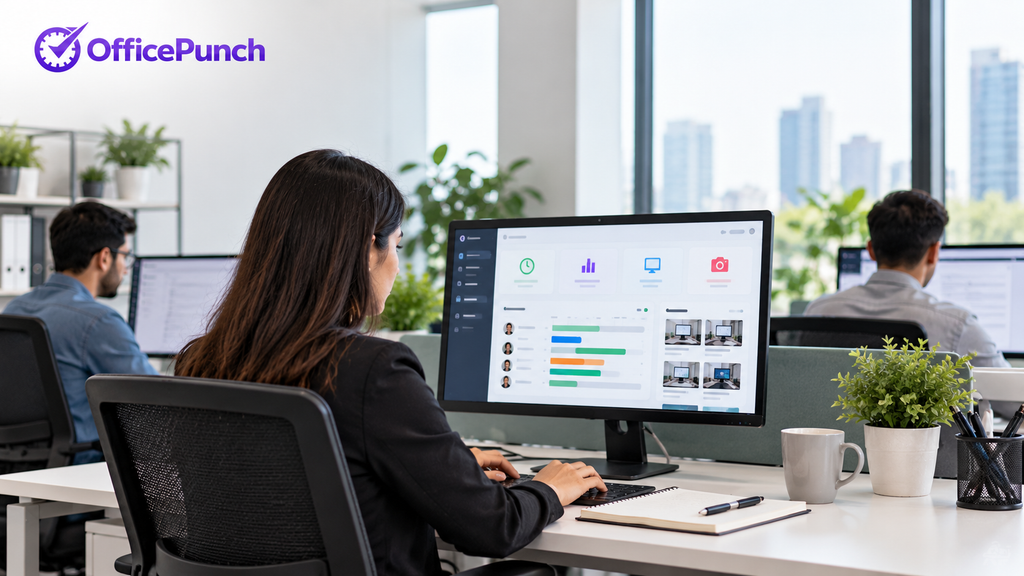
Office Punch is designed for teams where work happens on a Windows or macOS computer. The desktop app records session start and end automatically at login, tracks active versus idle time throughout the session, and sends attendance data to a web dashboard managers can check from any browser.
The free plan covers up to five users with automatic clock-in, idle detection, and 30 days of attendance history — no credit card required. The premium plan is $4 per seat per month billed annually and adds app and website usage tracking, random screenshots at configurable intervals, IP and geo-location punch restrictions, and one year of data retention.
For mixed Windows and Mac teams, both apps feed into the same account and the same manager dashboard. There is no separate plan for Mac versus Windows users.
Office Punch does not include a mobile time clock, project billing, or direct payroll platform integrations. It handles the session-level attendance record. Teams that need project tracking, client invoicing, or payroll platform connections will need separate tools for those functions. For more information or to start the free plan, visit officepunch.com.
Frequently Asked Questions About Employee Time Tracking Software
What is employee time tracking software?
Employee time tracking software monitors time spent on tasks and projects, replacing manual timesheets with automated logs and dashboards. For desktop teams, the most accurate version records sessions automatically at PC login. It gives managers visibility into attendance, active hours, idle time, and — on premium plans — application usage.
What is the best time tracking software for desktop teams?
The best time tracking software for a desktop team depends on what the team needs to capture. For attendance and hours-worked records on Windows and Mac, automatic session logging from PC login is the most accurate approach — Office Punch is built specifically for this use case. For teams that also need project tracking, billable time management, or client invoicing, tools like Harvest, TimeCamp, or Clockify add those layers. The key question is whether the primary need is automatic attendance capture or project-level attribution.
How does automatic time tracking differ from manual time tracking?
Automatic time tracking starts when employees turn on their devices, with no employee action required. Manual time tracking asks employees to submit hours after the work is done. Studies show manual tracking underreports time by 15 to 25 percent. Automatic tracking eliminates that gap and removes the end-of-day step that produces most missed entries.
What employee monitoring features do desktop time trackers include?
Session-level trackers like Office Punch record start time, end time, active time, and idle time. Premium plans add app and website usage tracking and random screenshots. Activity-focused tools like Time Doctor capture screenshots and monitor websites for accountability. Hubstaff offers GPS tracking and geofencing for mobile teams. Compliance and auditing features support adherence to labor regulations. For desktop teams, app usage tracking and idle detection produce the most actionable signal without unnecessary complexity.
Is there a free version of employee time tracking software?
Yes. Office Punch’s free version covers up to five users permanently with automatic clock-in, idle detection, and 30 days of attendance history — no credit card required. Clockify also provides a free plan for unlimited users with manual and automatic time tracking. The right free version depends on whether automatic session logging or manual time entry meets your needs, and how many users you need to cover within the free tier.
How does employee time tracking software support client invoicing?
Time tracking software helps improve billing accuracy by differentiating between billable and non-billable hours. Harvest converts hours to invoices and accepts online payments. TimeCamp generates invoices directly from billable hours tracked. Clockify allows users to create invoices in paid plans. Toggl Track organizes projects and tasks for clear invoicing. Office Punch does not include billable hours tracking or client invoicing — it is built for the attendance and session-level tracking use case. Teams with invoicing requirements should evaluate Harvest, TimeCamp, or Clockify for that layer.
What key features should I look for in automated time tracking software?
Key features include automated session logging, idle detection, configurable inactivity thresholds, real-time attendance dashboards, attendance exception alerts, and exportable reports in payroll-compatible formats. For compliance, look for timestamped machine-generated records. For project billing, look for project hierarchy and task assignment. For location controls, IP and geo-location punch restrictions limit where sessions can start.